
Quick Start
WorkAny Bot is a cloud-based OpenClaw agent that serves you anytime, anywhere, 24/7 online.
Follow the steps below to quickly create your WorkAny Bot.
Create a Bot
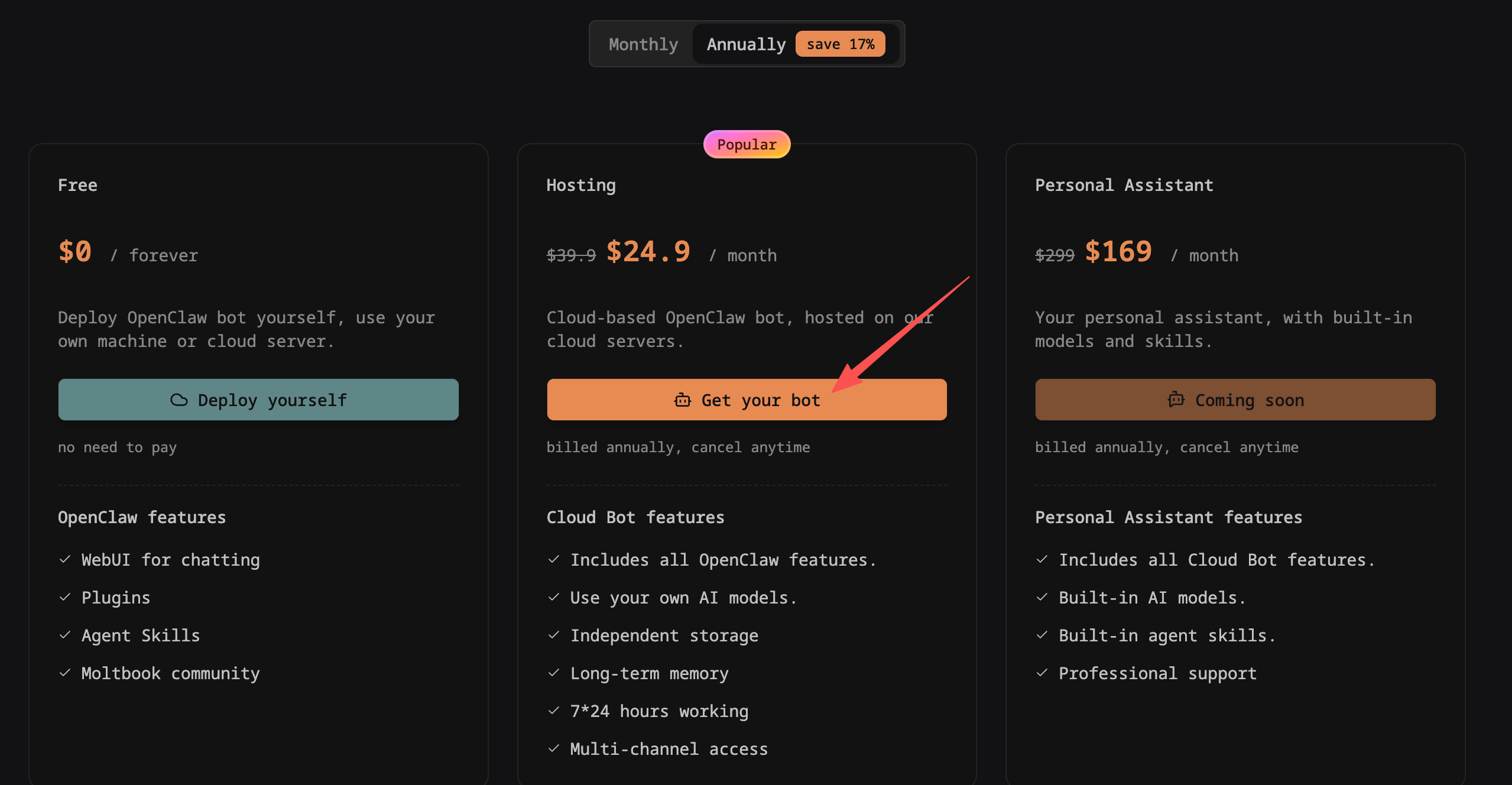
Select a hosting plan on the Pricing page, place an order, and complete the payment.
After payment is completed, you will be automatically redirected to the bot management page.
On the Bot Management page, click the "Start" button to enter the bot startup page.
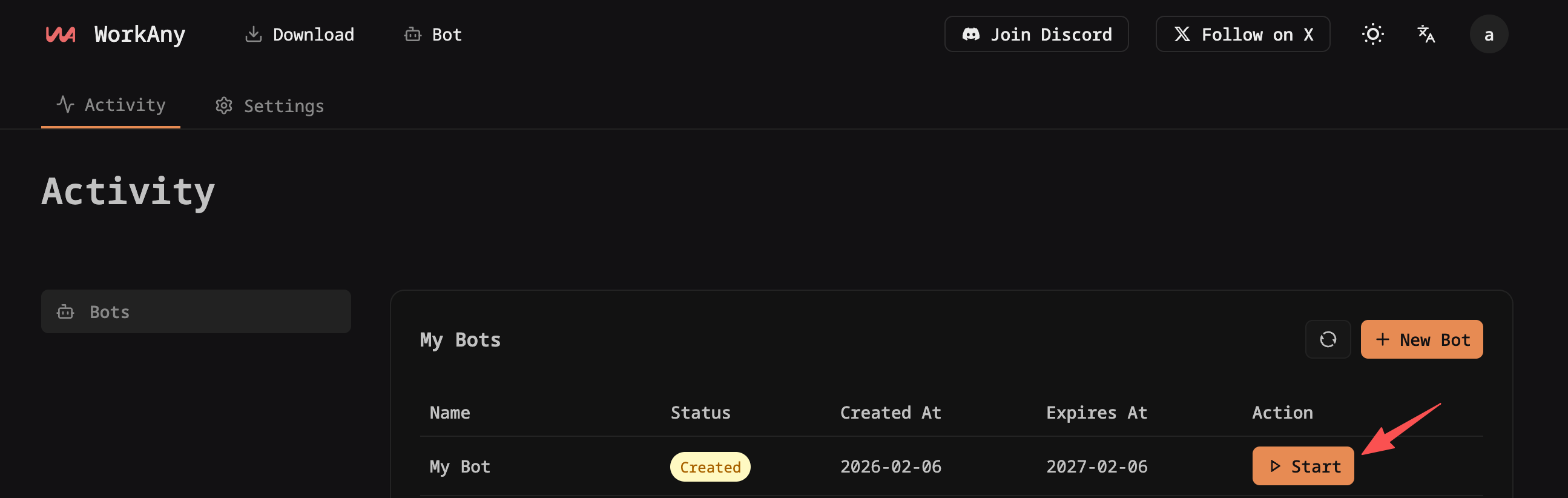
On the bot startup page, in the first step, enter a bot name and click "Next".

On the bot startup page, in the second step, select a model provider, enter parameters such as provider name, Base URL, Model, API Key, etc., and click the "Test Connection" button to test if the connection is successful.
After the connection test succeeds, click "Next".
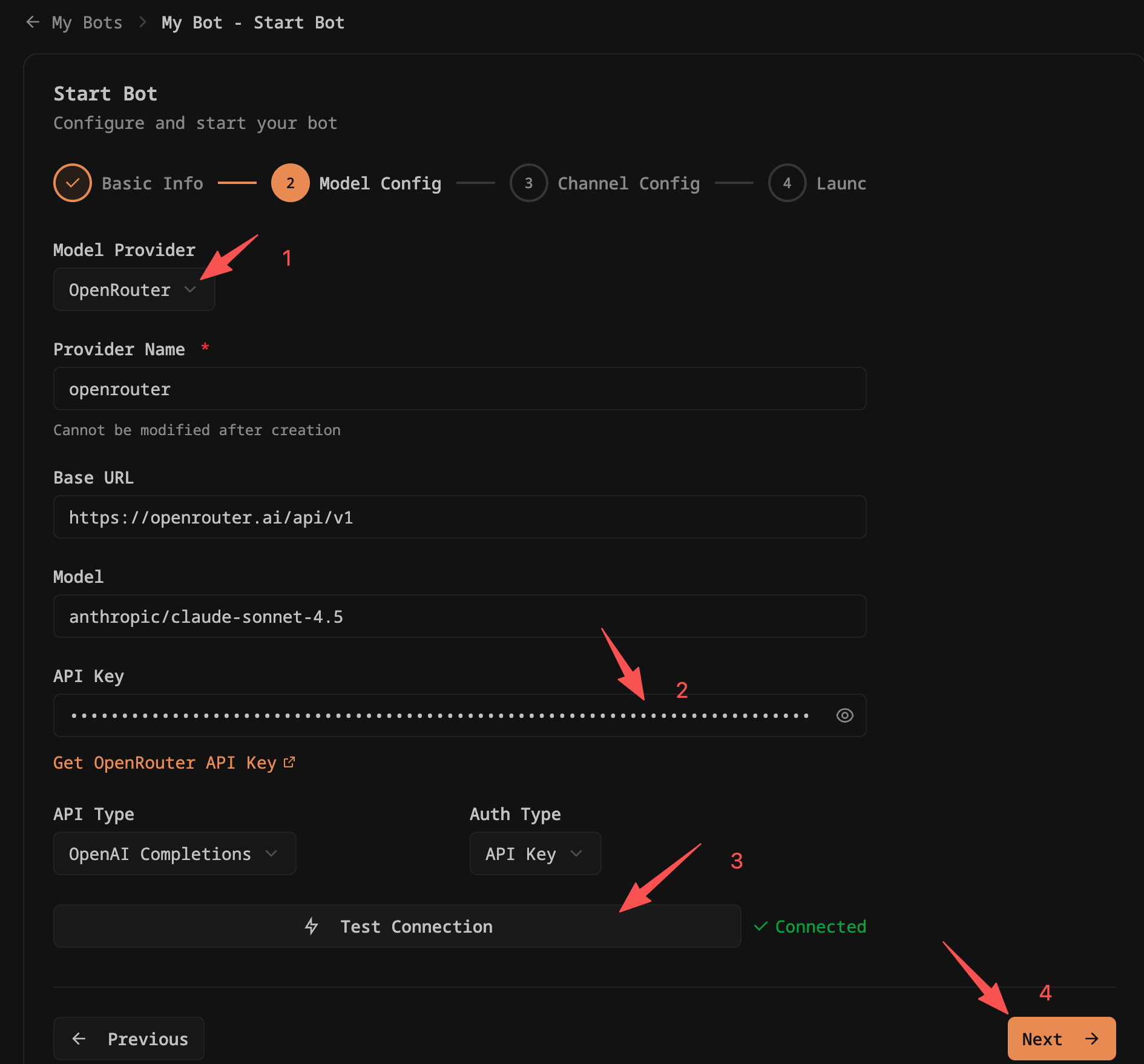
Currently supported model providers by default: Anthropic, OpenAI, OpenRouter, SiliconFlow. Other channel providers may not be compatible, please test them yourself.
When using
claude*related models, selectAnthropic MessagesforAPI Type. For other models, selectOpenAI Completions.
On the bot startup page, in the third step, select a channel, fill in the account name and Token, and click "Next".
You can also choose to skip channel configuration and configure the integration channel later in the bot management page after the bot is started.
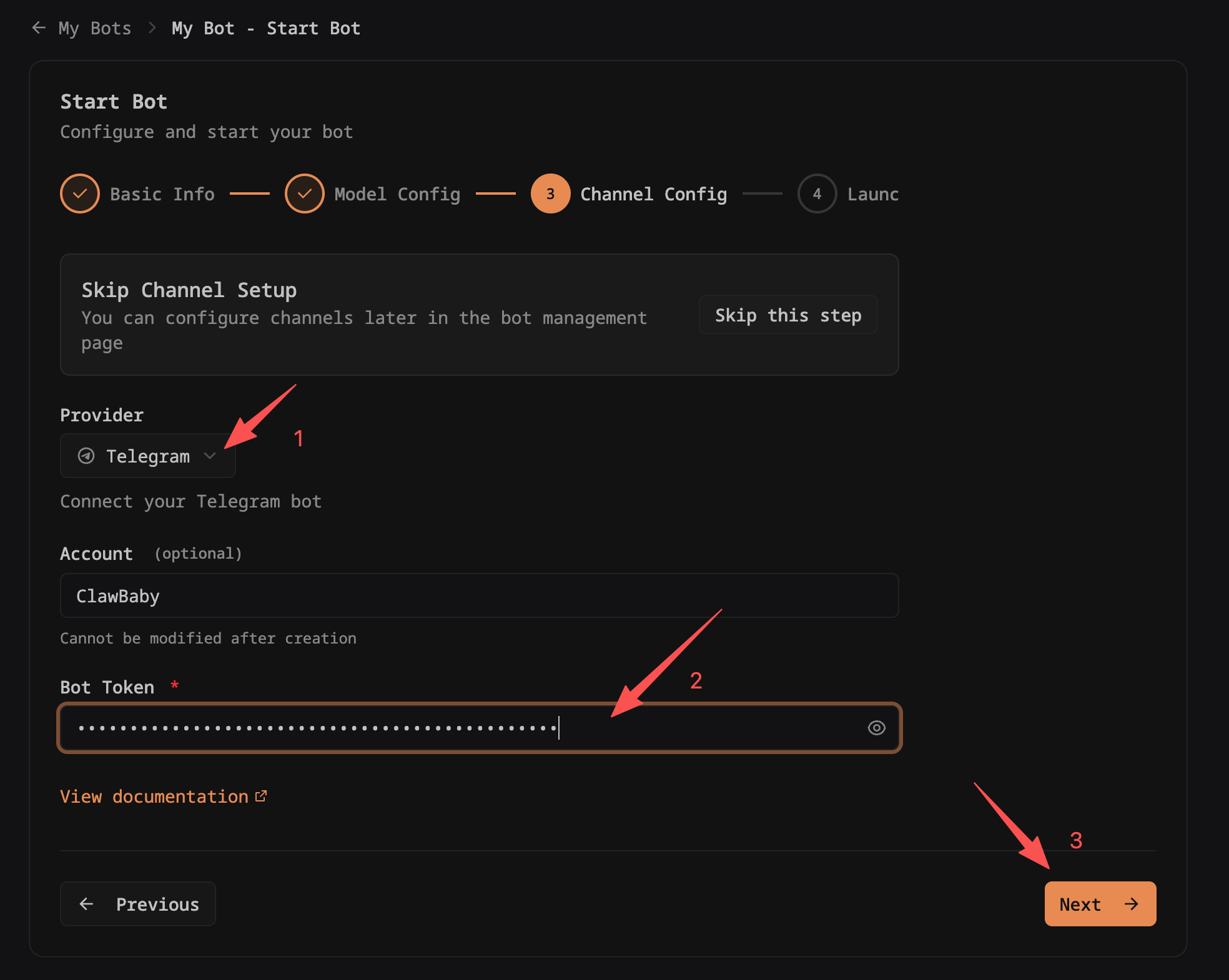
Currently supported channels by default: Telegram.
You can refer to the Telegram Integration Guide to create a Telegram bot and obtain a Token.
On the bot startup page, in the fourth step, after confirming that the configurations from the previous steps are correct, click the "Start Bot" button.
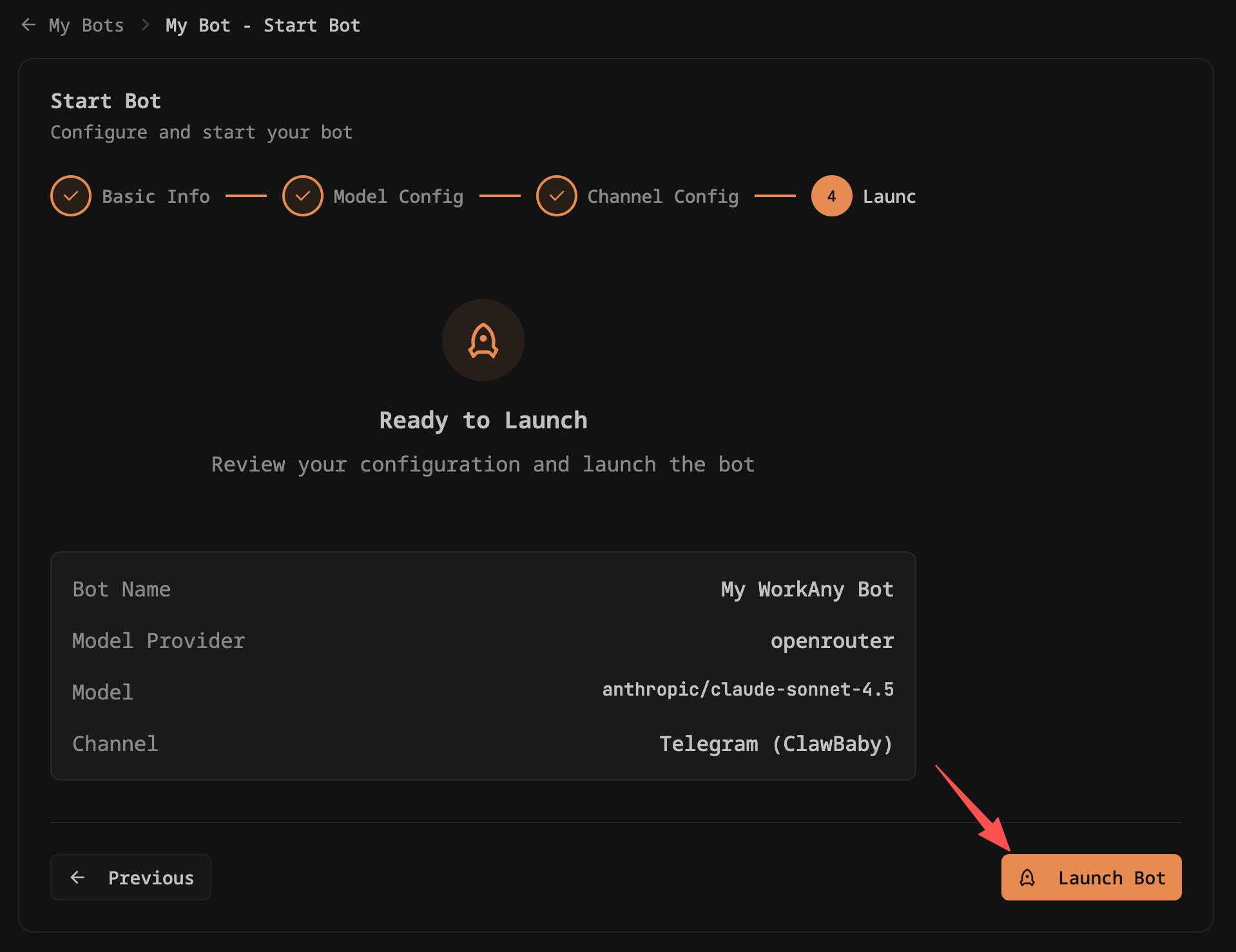
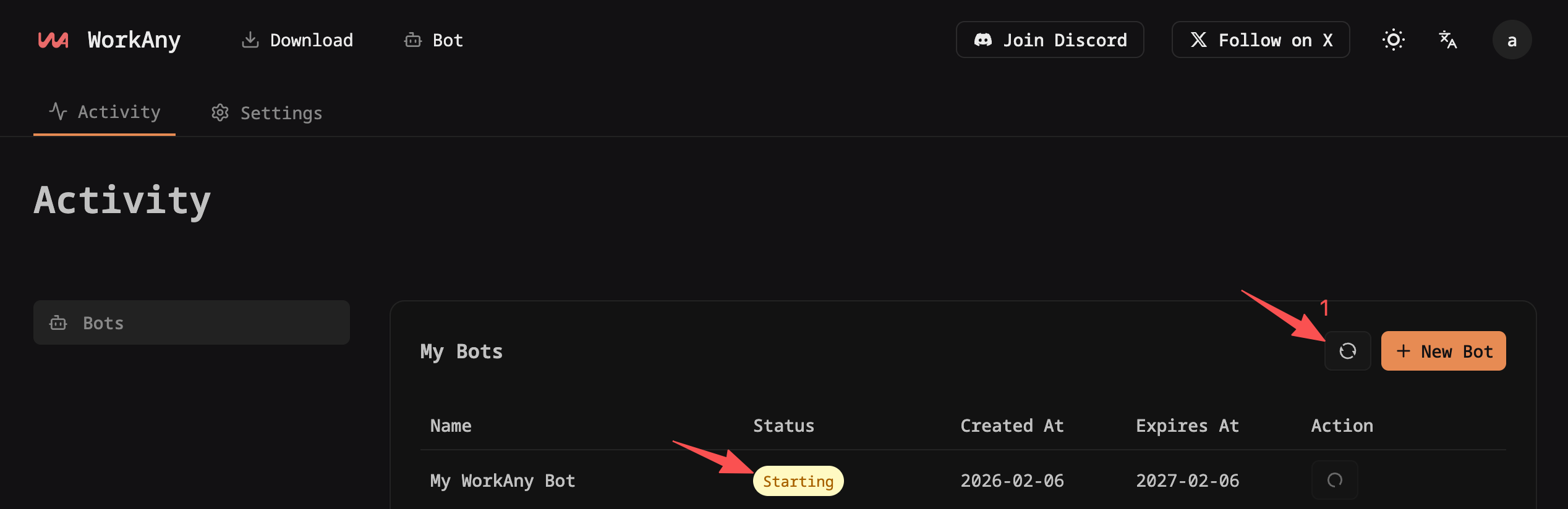
After clicking the "Start Bot" button, you will be automatically redirected to the bot management page, where you can see the bot status as "Starting".
The startup process takes a few minutes, please be patient.
You can actively click the "Refresh" button after a few minutes to check the latest bot status.
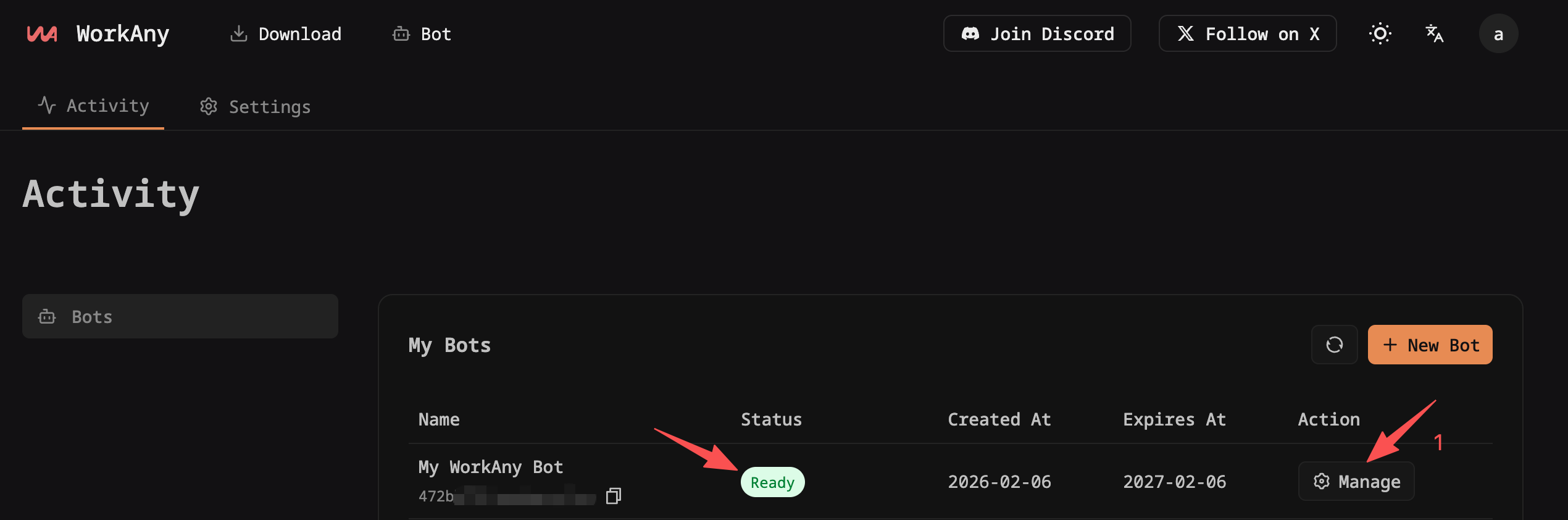
Once you see the bot status as "Ready", the bot startup is complete and it is in normal usable state.
You can click the "Manage" button to enter the bot management page and perform other configuration operations.
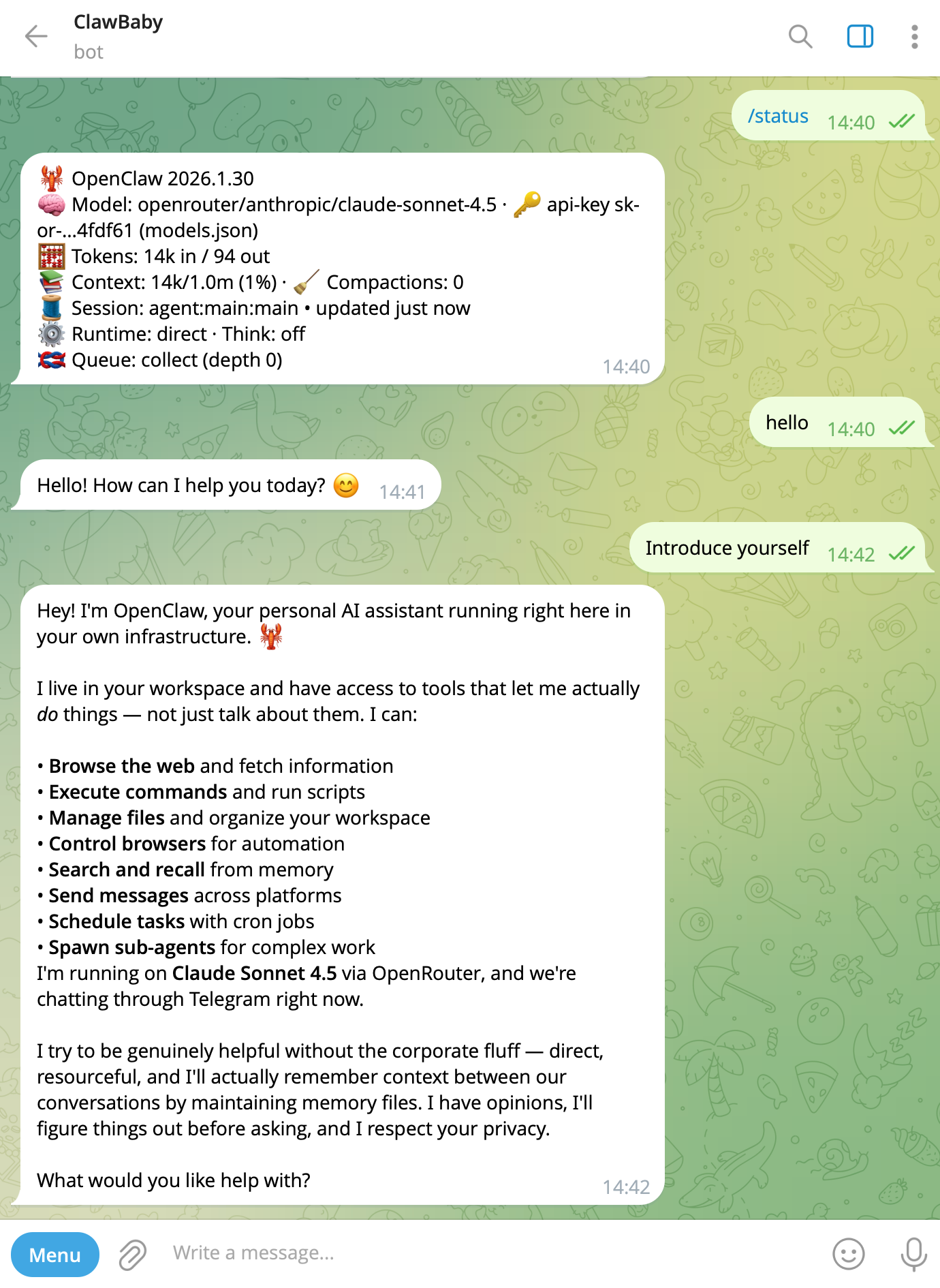
If you configured a Telegram channel when starting the bot, you can directly chat with the bot in Telegram.
Access Bot Web Version
On the Bot List page, click the "Manage" button on the right side of the bot to enter the bot management page.
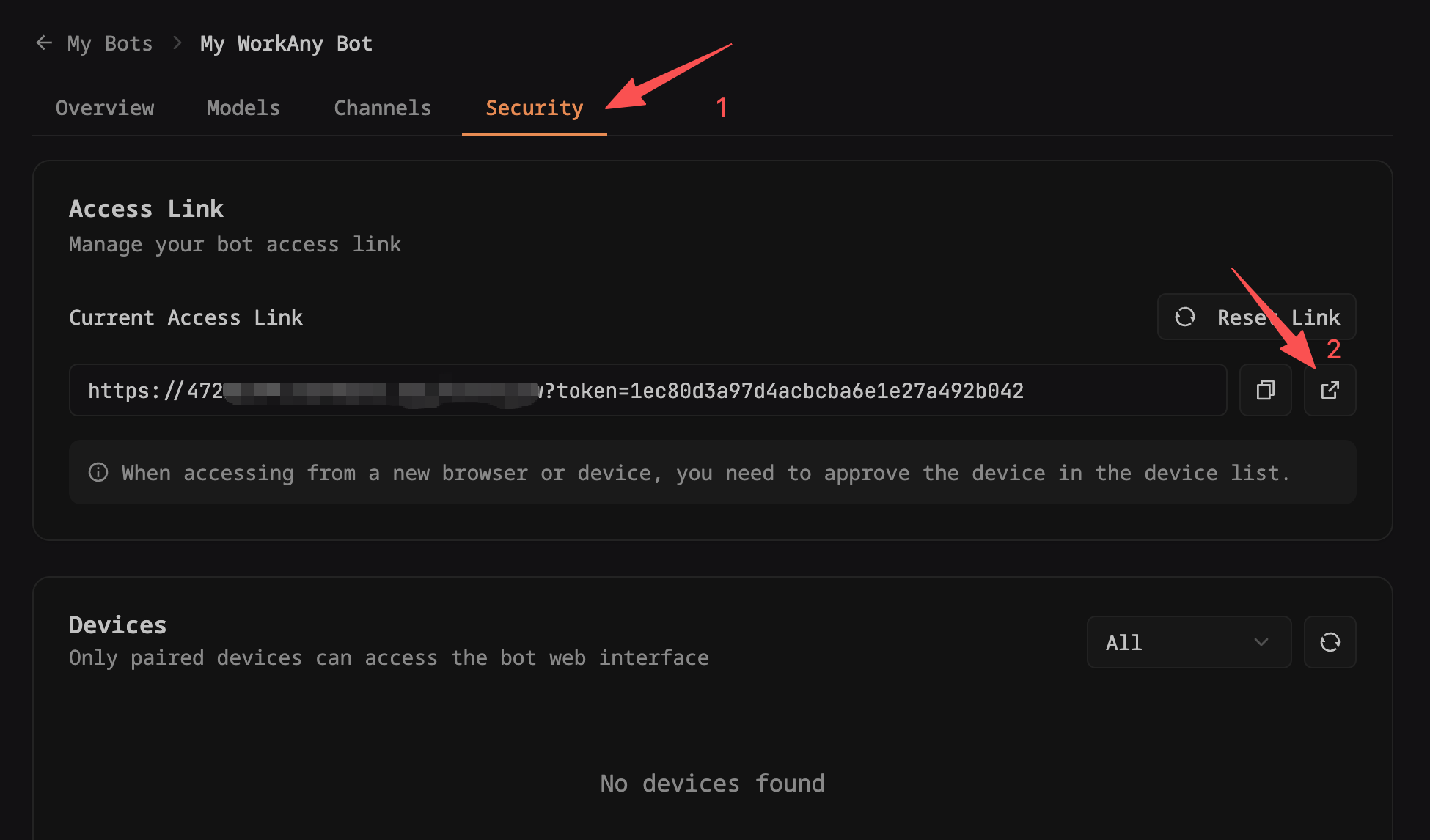
On the bot management page, click the "Security" tab, then click the open icon of "Access Link" to open the bot web version in a new tab.
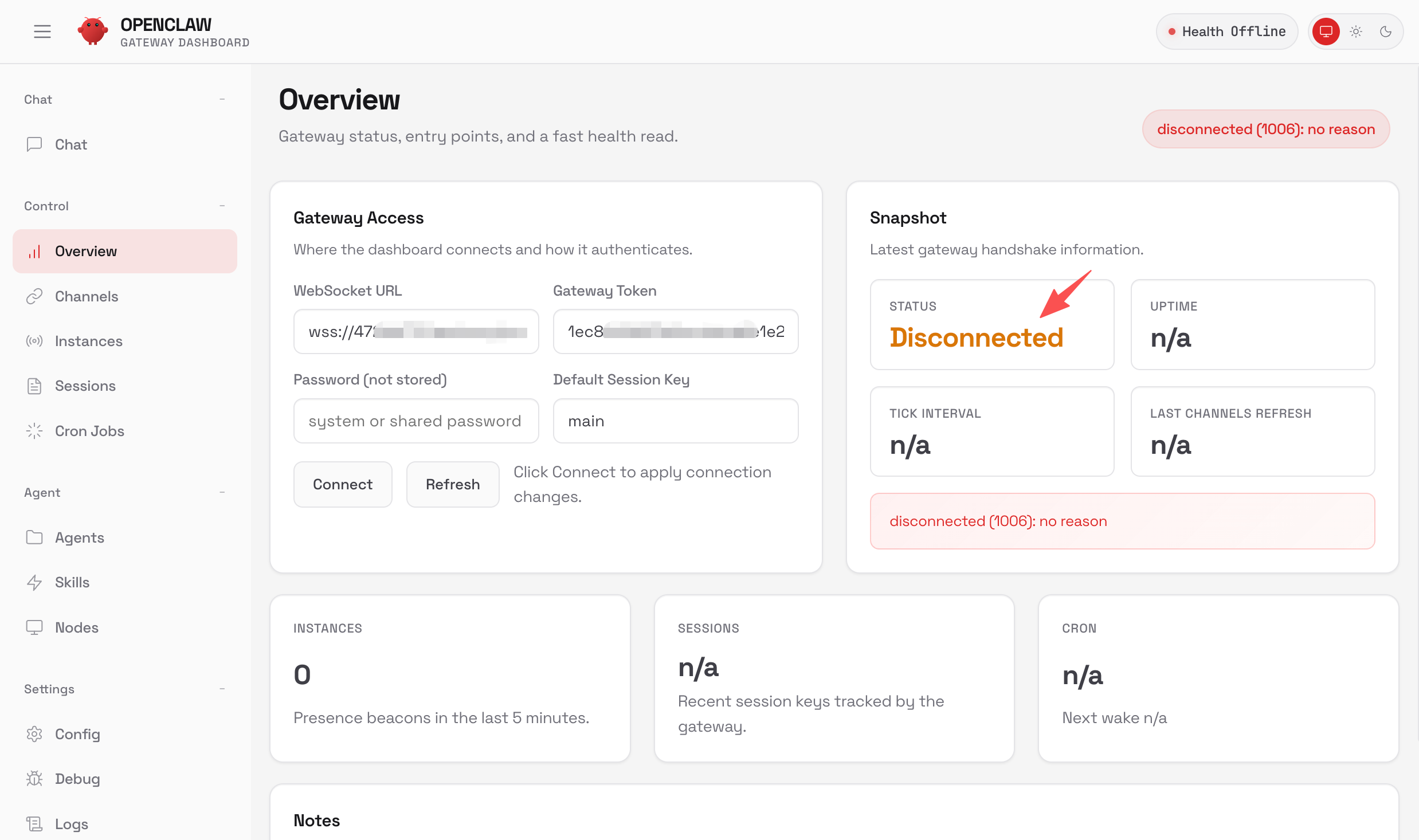
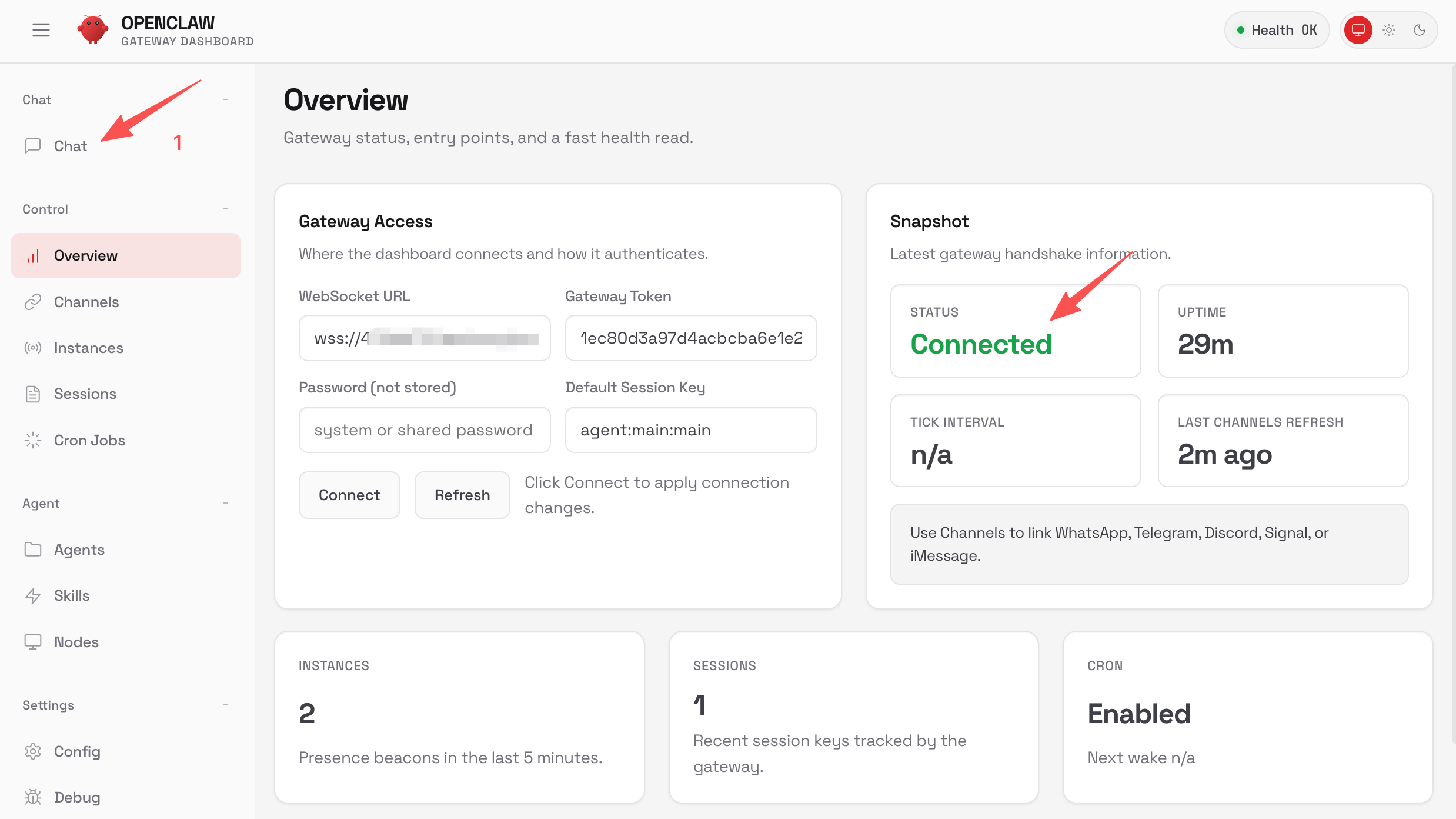
When you first open the bot web version, you will see a Disconnected status, and you don't have permission to use the web version yet.
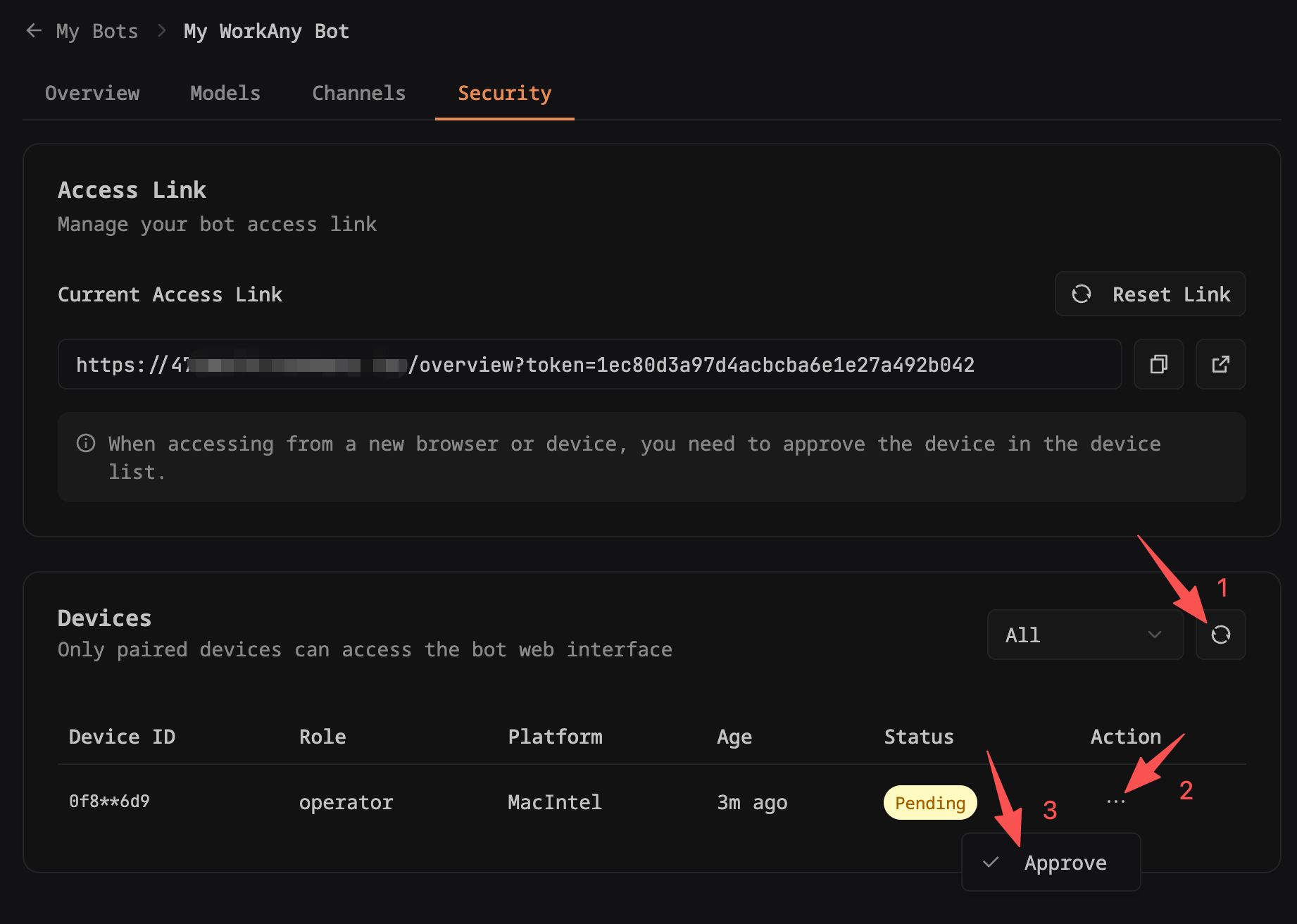
Return to the "Security" tab on the bot management page, click the refresh icon in the upper right corner of "Device List" to refresh the list of devices pending authorization.
When you see a "Pending Authorization" device, click the "Approve" button on the right to approve device access.
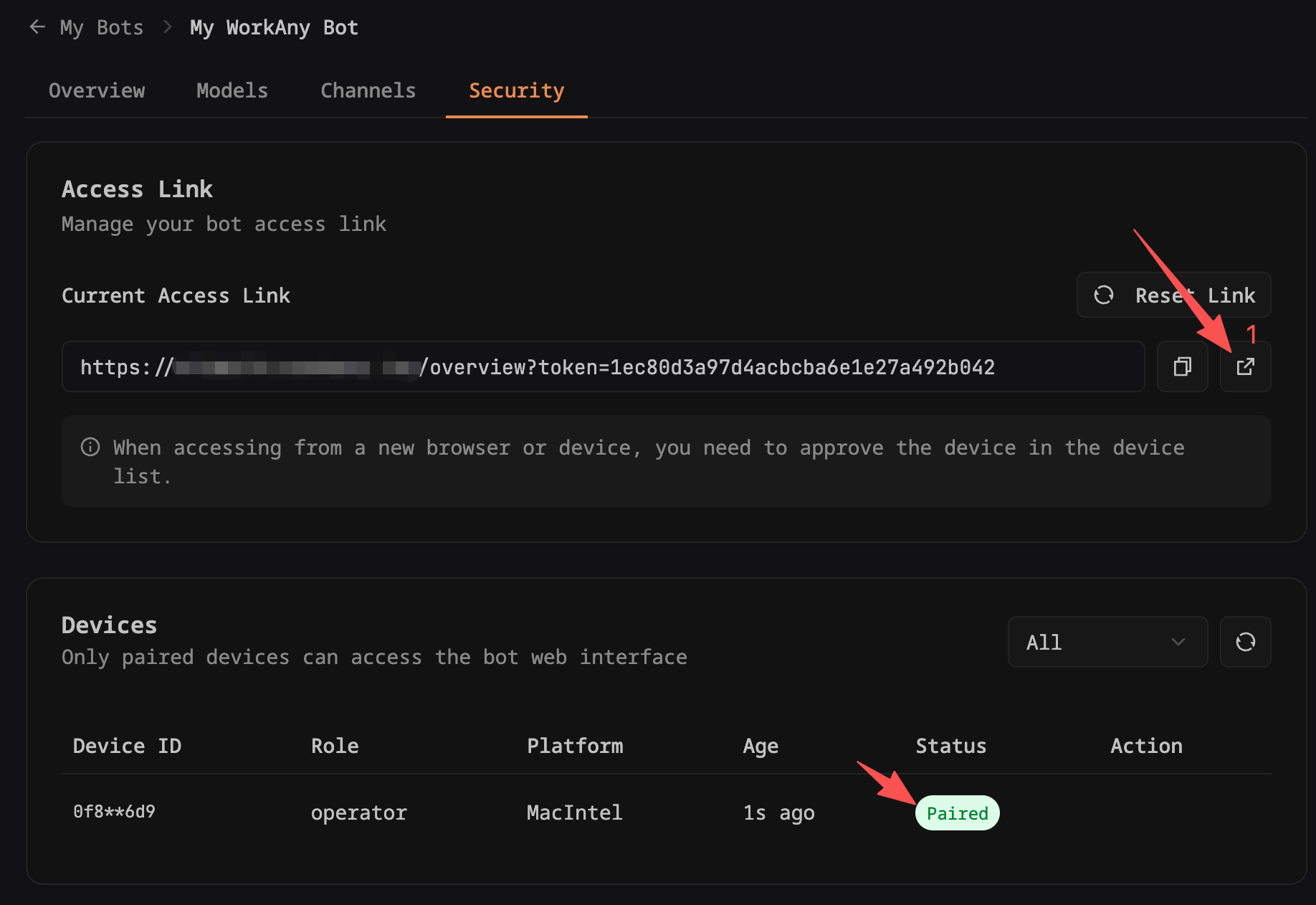
After the device status becomes "Paired", open the bot web version access link again.
On the bot web version, when you see the Connected status, it means the device has been authorized for access.
You can click the Chat tab to start a conversation.
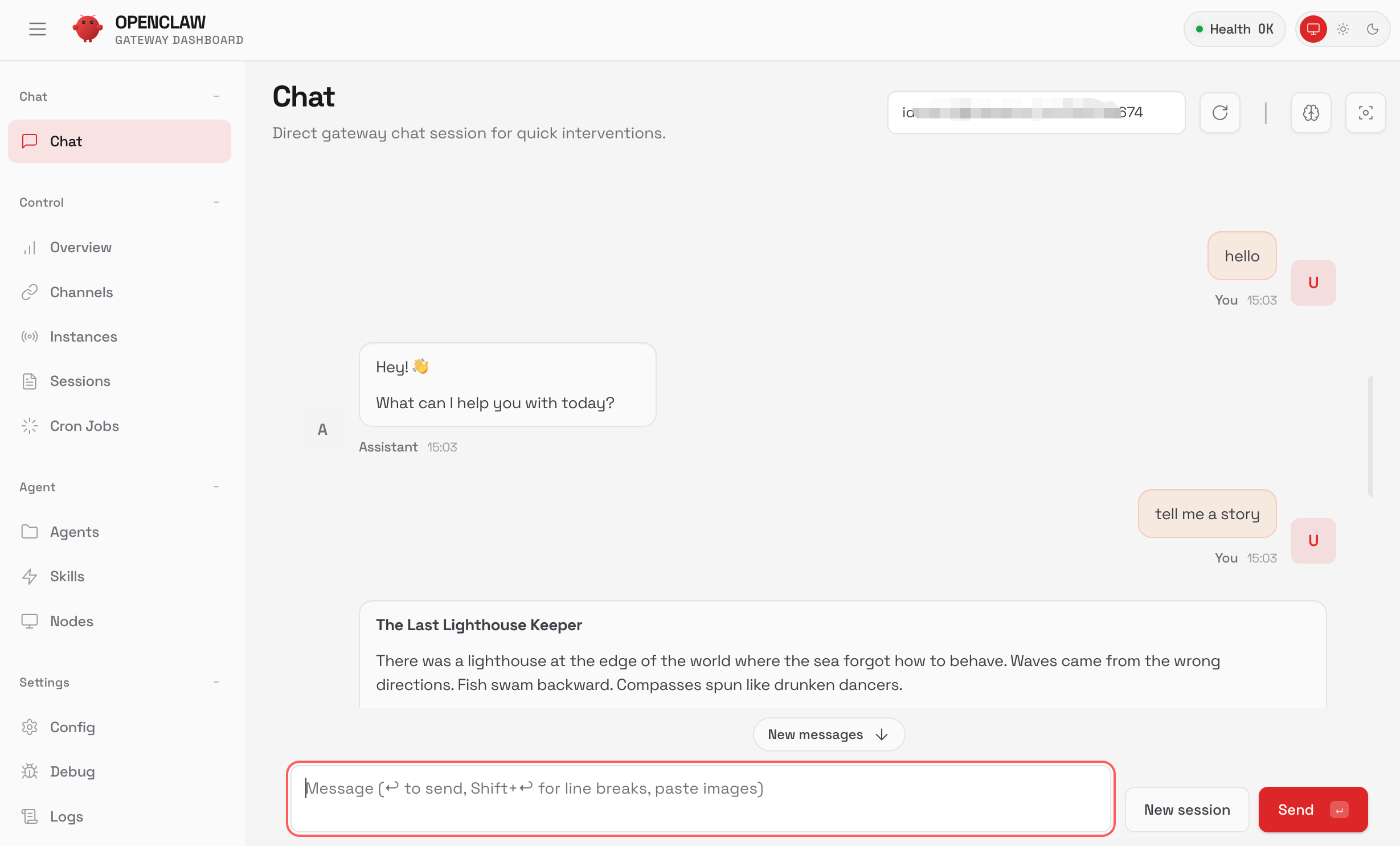
On the bot web version, enter content to chat.
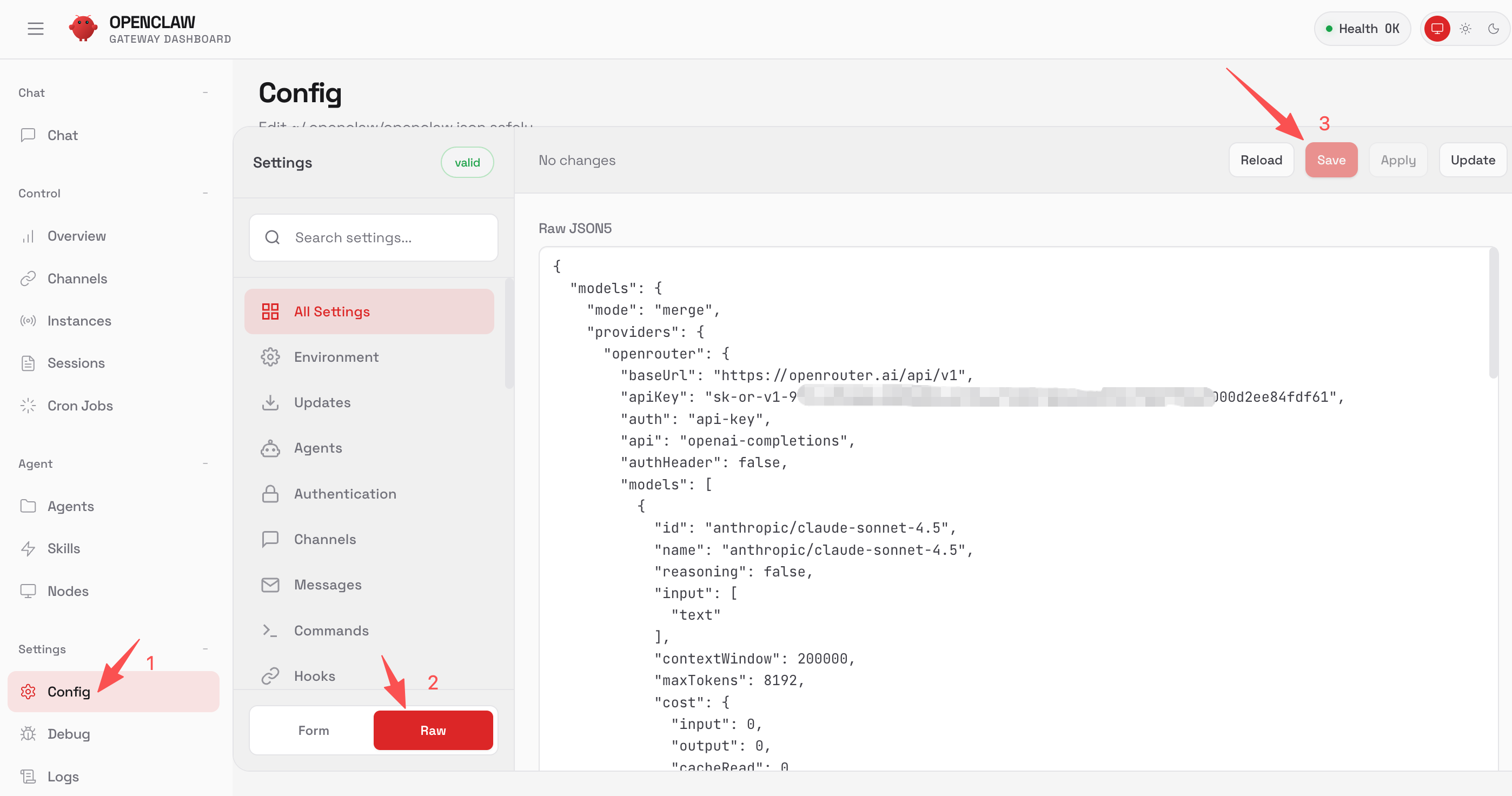
You can enter the configuration page on the bot web version to modify bot configurations.
For specific supported configuration content, you can refer to the OpenClaw Documentation.
Each time you access the bot web version on a new device or new browser (including incognito mode), you need to re-authorize access.
You can modify bot configurations in the web version. Please operate with caution and do not easily share the web version access link with others.